MLS photo rules for edited photos: disclosure labels
Last updated 2026-11-25 · Venu Gopal Reddy Muvva, founder
ListingPhotoStudio automatically adds disclosure labels to photos with staging, twilight, or object removal. It keeps the original unedited file separate and ensures your MLS copy is never branded. You also get a fair-housing word scan for your listing description.
Steps
- Upload your shoot. Add JPEG or PNG files to a listing and tick twilight or object removal on the photos that need them.
- Process photos. Click Process all photos. The tool applies edits and automatically adds disclosure labels to any altered image.
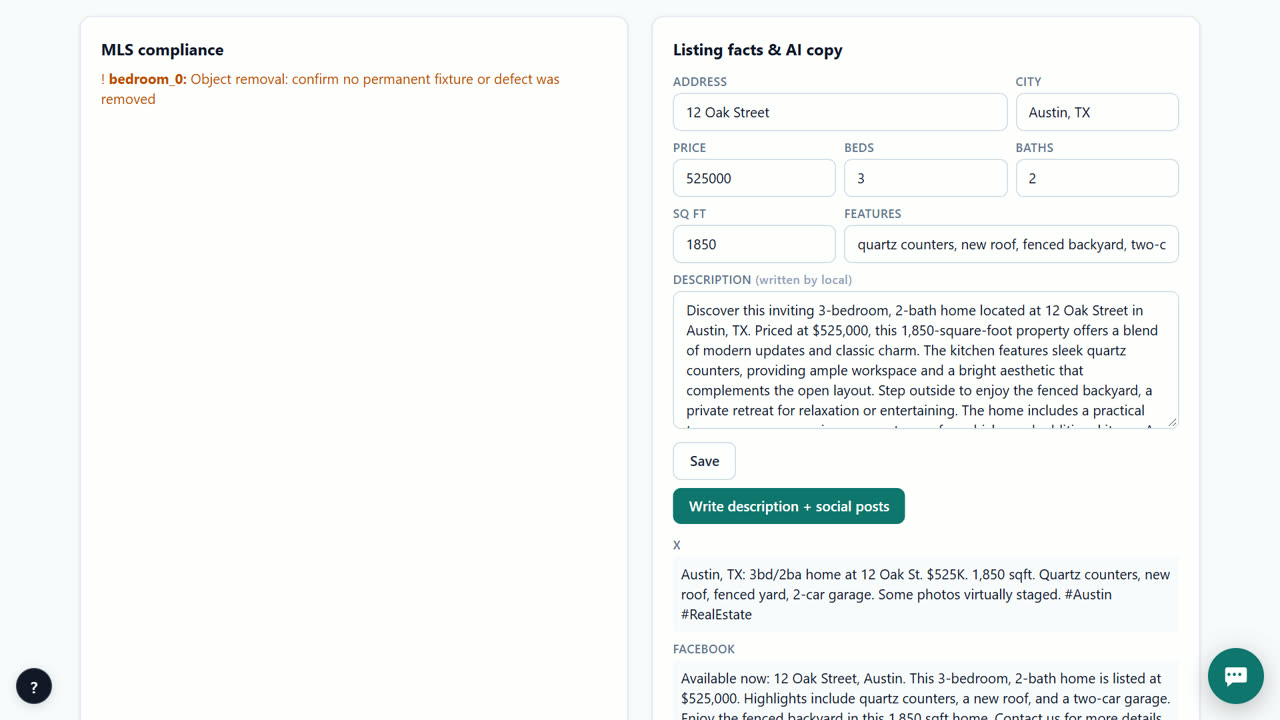
- Review compliance. Check the per-listing compliance report. It shows which photos have labels and confirms originals are kept separate.
- Scan listing copy. Write or generate your listing description. The compliance section flags fair-housing words in the remarks.
Automatic disclosure labels
When you edit a photo with twilight, object removal, or virtual staging, ListingPhotoStudio adds a visible disclosure label. This meets MLS rules that require you to note when a photo has been altered. The label is placed clearly on the image so buyers and agents can see it. You do not have to add this manually. The system handles it for every eligible photo in your upload.
Originals kept separate
For every labelled photo, the unlabeled original is kept in a separate folder marked not for MLS. You can use it for print or your portfolio, and you have it on hand if anyone asks what the photo looked like before the edit. You don't need to keep two copies yourself.
MLS safe downloads
Your MLS copy is never branded with your studio logo or name. This prevents issues with MLS rules that prohibit marketing on listing photos. The system also checks that all images meet the minimum size of 1024 pixels. If a photo is too small, the system flags it so you can fix it before uploading. This keeps your listing ready for publication without manual checks.
Fair-housing text scan
Listing remarks must avoid words that describe who should live in a home. The compliance section scans your saved remarks each time you open the listing and lists any flagged words, so you can change them before you publish. Generated descriptions and social posts are also checked when they are written. If some photos are staged, it also reminds you to say so in the remarks.
When ListingPhotoStudio is not the right tool
ListingPhotoStudio does not upload directly to your MLS; you download the files and upload them yourself. It is not legal advice, and it does not know every local MLS rule, so check yours. If you want a person to review every photo before delivery, a human-first service such as BoxBrownie fits better. ListingPhotoStudio suits photographers who want the common checks done automatically on every listing.
Questions
Does the disclosure label appear on every photo?
No. It appears on the MLS copy of photos altered with twilight, object removal or staging. Standard edits like HDR, window pull, sky or white balance don't get a label.
Can I remove the disclosure label?
No. The label is required for compliance on altered photos. You cannot remove it from the edited file. However, you always have the unedited original available if you need a clean version for other uses.
What if my MLS has different rules?
MLS rules differ by region. The labels and checks cover the common rules: label altered photos, keep originals, no branding, minimum 1024 px. Check your own MLS's rules before publishing; you can untick the disclosure label per photo if your MLS doesn't want it.
Does the fair-housing scan check social posts?
Generated social posts are checked when they are written. The compliance section scans the description (remarks) you save on the listing.
Related
Free for your first 14 days. Then pay only for what you use.
Start free — 14 days on us